Graymail Protection
INKY identifies legitimate bulk mail (newsletters, promotions, notifications) and moves it aside so users can focus on important messages. Unlike spam or phishing, graymail is mail users may have subscribed to but doesn't need immediate attention.
Written By Matt Sywulak
Last updated 12 months ago
Enable Detection
Admin Center > Graymail Protection
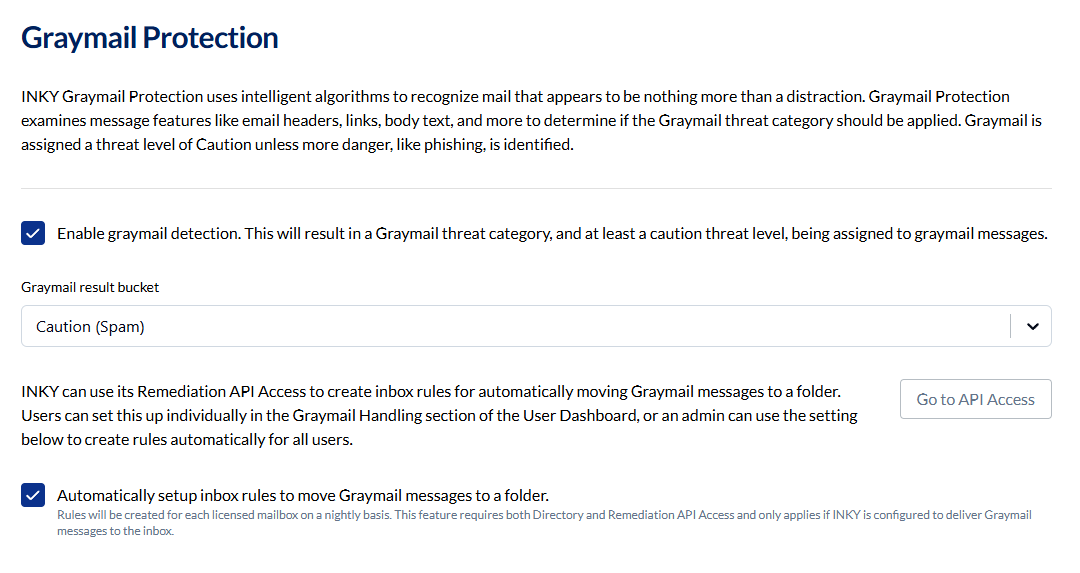
Toggle on to flag graymail with the Graymail threat category. Detection analyzes headers, links, body text, and sending patterns.
Graymail result bucket: Set to "Caution (Spam)" by default. If graymail contains actual threats (phishing, malware), INKY escalates the threat level appropriately.
Automatic Folder Rules
INKY can create inbox rules to automatically move graymail to a dedicated folder, keeping inboxes clean without blocking legitimate mail.
Two Setup Options
1. User-Managed Rules
Users create their own filters to organize graymail.
Google Workspace:
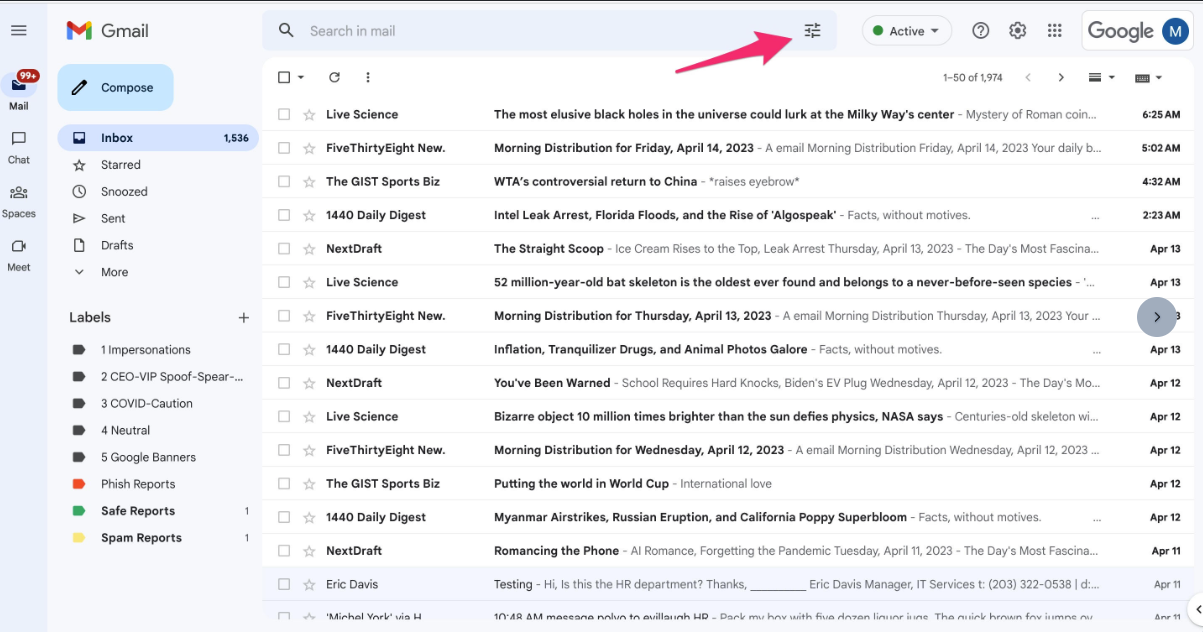
In Gmail, click Filter button
Has the words:
[INKY:Graymail]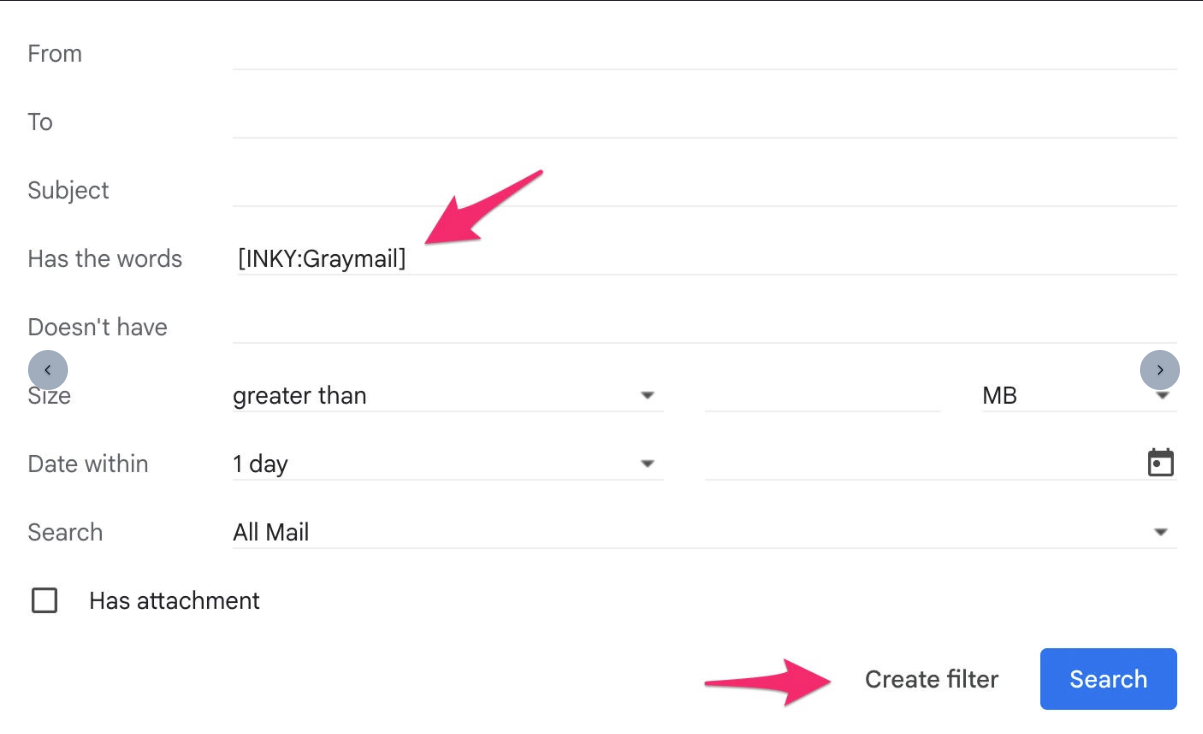
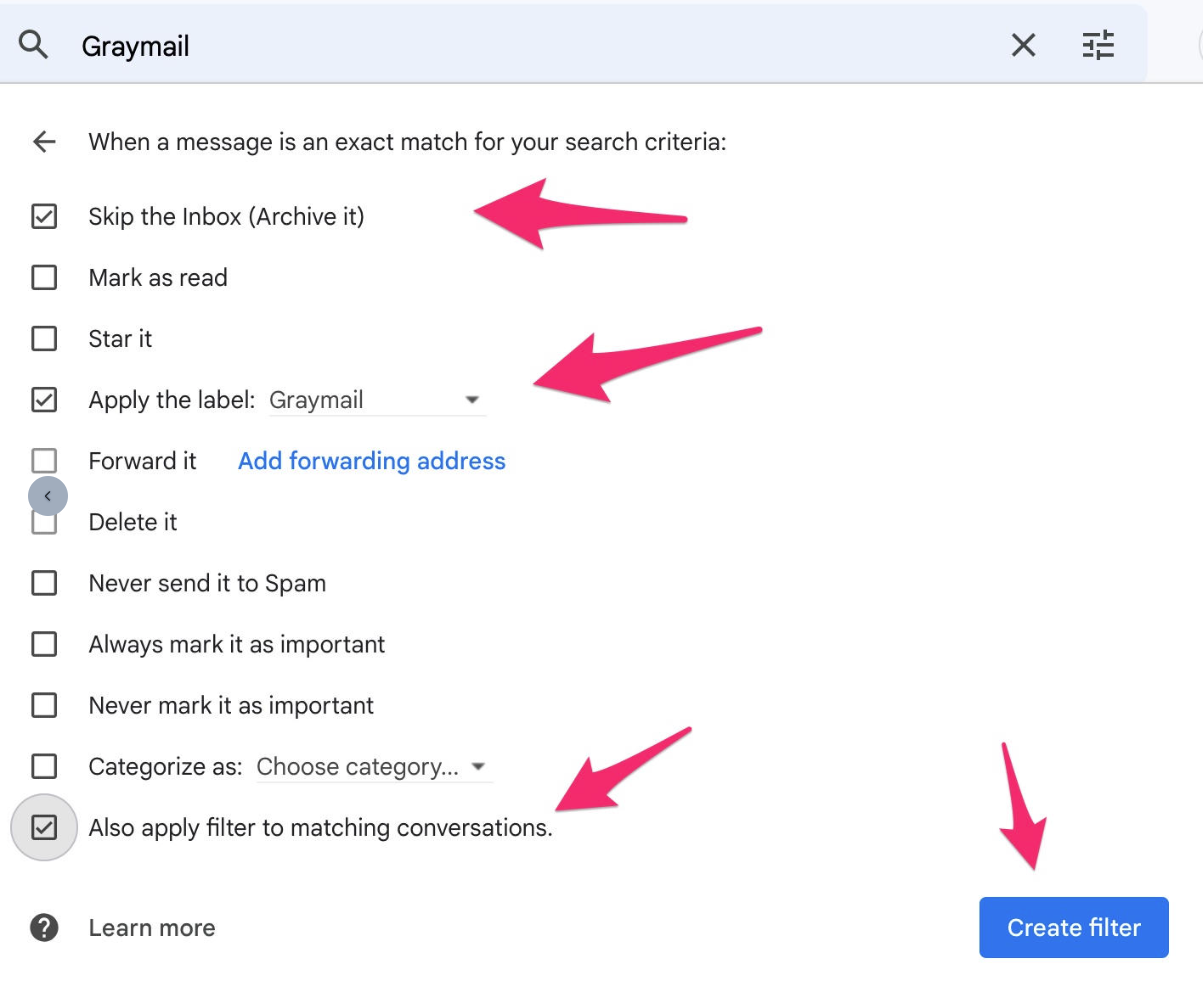
Create filter
Select: Skip the Inbox + Apply label: Graymail (create new)
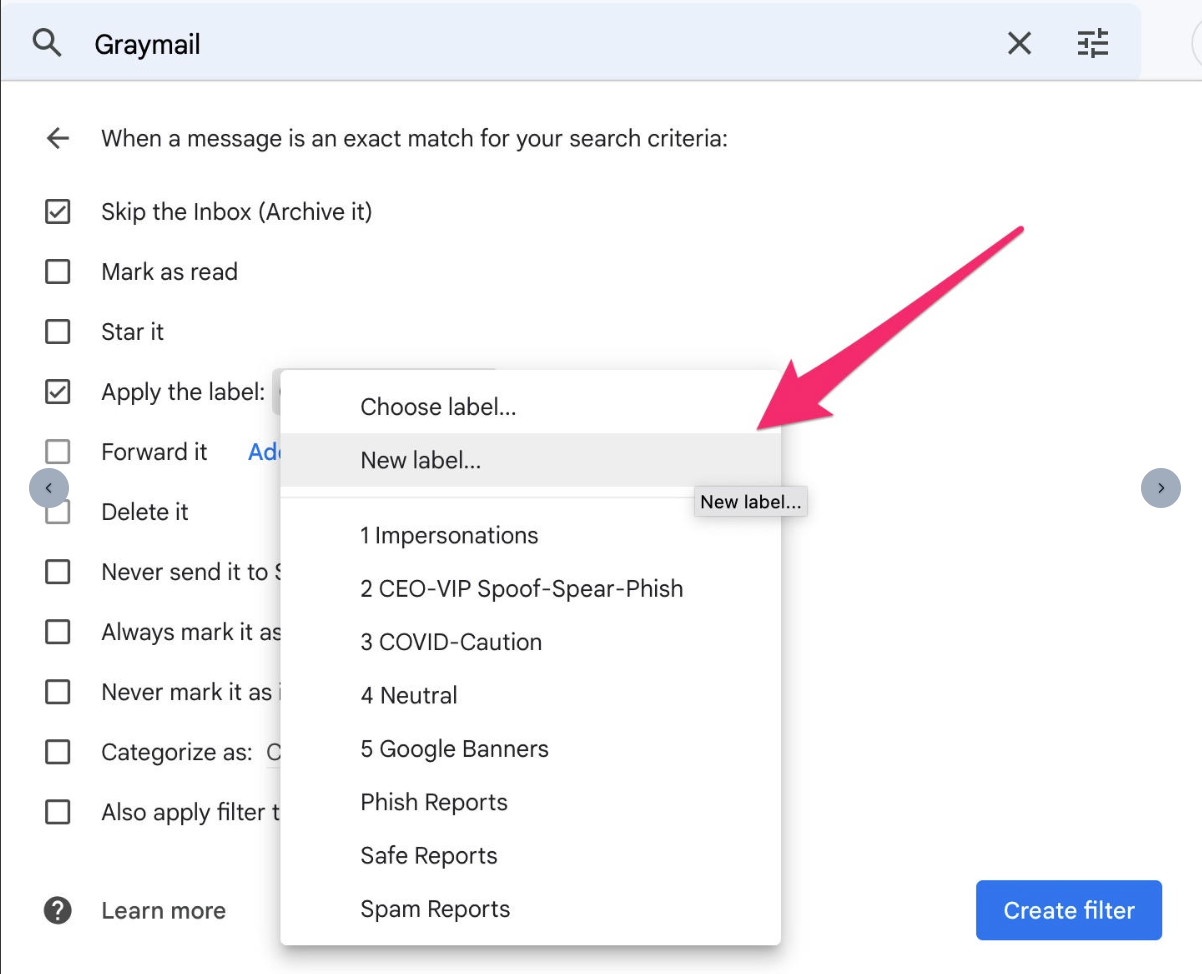
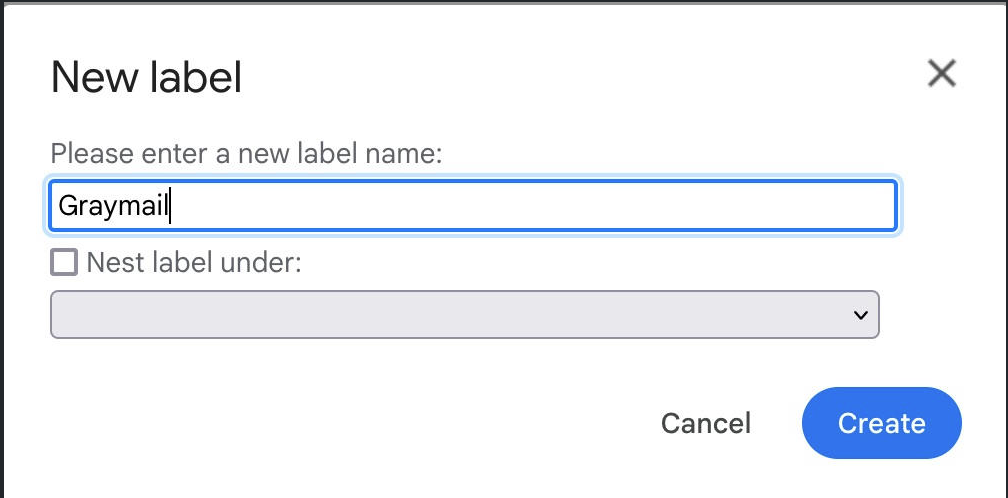
Check "Also apply filter to matching conversations"
Create filter
Microsoft 365:
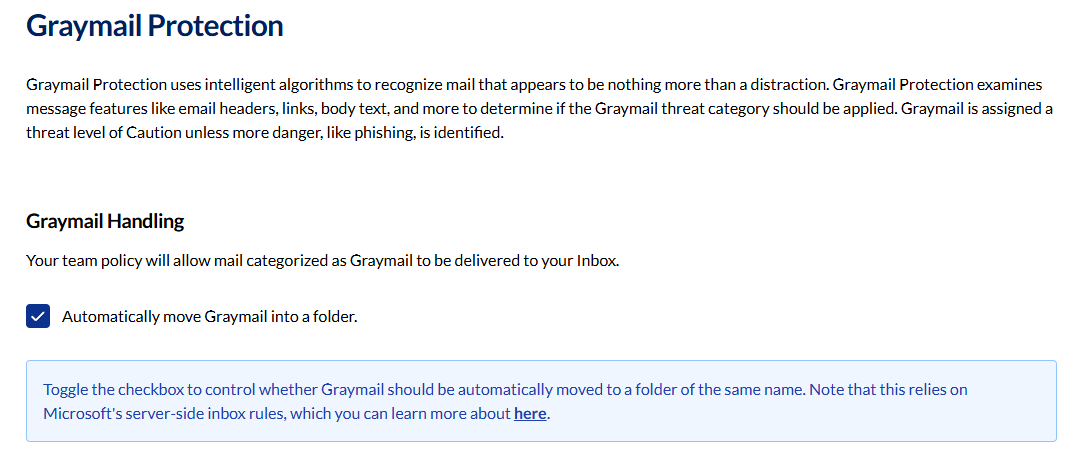
Users can enable graymail filtering from their User Center Graymail Protection - INKY
2. Admin-Managed (Automatic)
Enable "Automatically setup inbox rules to move Graymail messages to a folder" in Admin Center.
Requirements:
Directory API Access enabled
Remediation API Access enabled
Graymail configured to deliver to inbox (not quarantine)
Rules created nightly for all licensed mailboxes
When to use automatic setup: Reduce support tickets by handling graymail organization centrally.
When to use user-managed: Give users control over their own graymail handling preferences.
Key Distinction
Graymail isn't spam or phishing—it's legitimate bulk mail users may have subscribed to. INKY moves it aside rather than blocking it, so users can review when convenient.
Still need help? Ask the team