Email Encryption Setup
INKY encrypts outbound email and delivers it through a secure portal. Recipients access messages via authentication, keeping sensitive content protected.
Written By Matt Sywulak
Last updated 12 months ago
Enabling Encryption
Requirements:
K365 User with INKY Pro or
Standalone INKY Pro
Encryption Methods
Automatic Encryption
Trigger encryption via workflow rules:
Create workflow rule with conditions
Add Encrypt action
Messages matching conditions encrypt automatically
Common triggers:
Specific data types (credit cards, SSNs)
Subject line keywords
Recipient domains
Custom patterns
User-Initiated Encryption
Default keyword method:
Users type [encrypt] or (encrypt) in subject line to trigger encryption.
Customize the keyword:
Navigate to Outbound Protection Settings
Edit the "Encrypt Message" rule
Change subject line pattern to your preferred keyword
Save
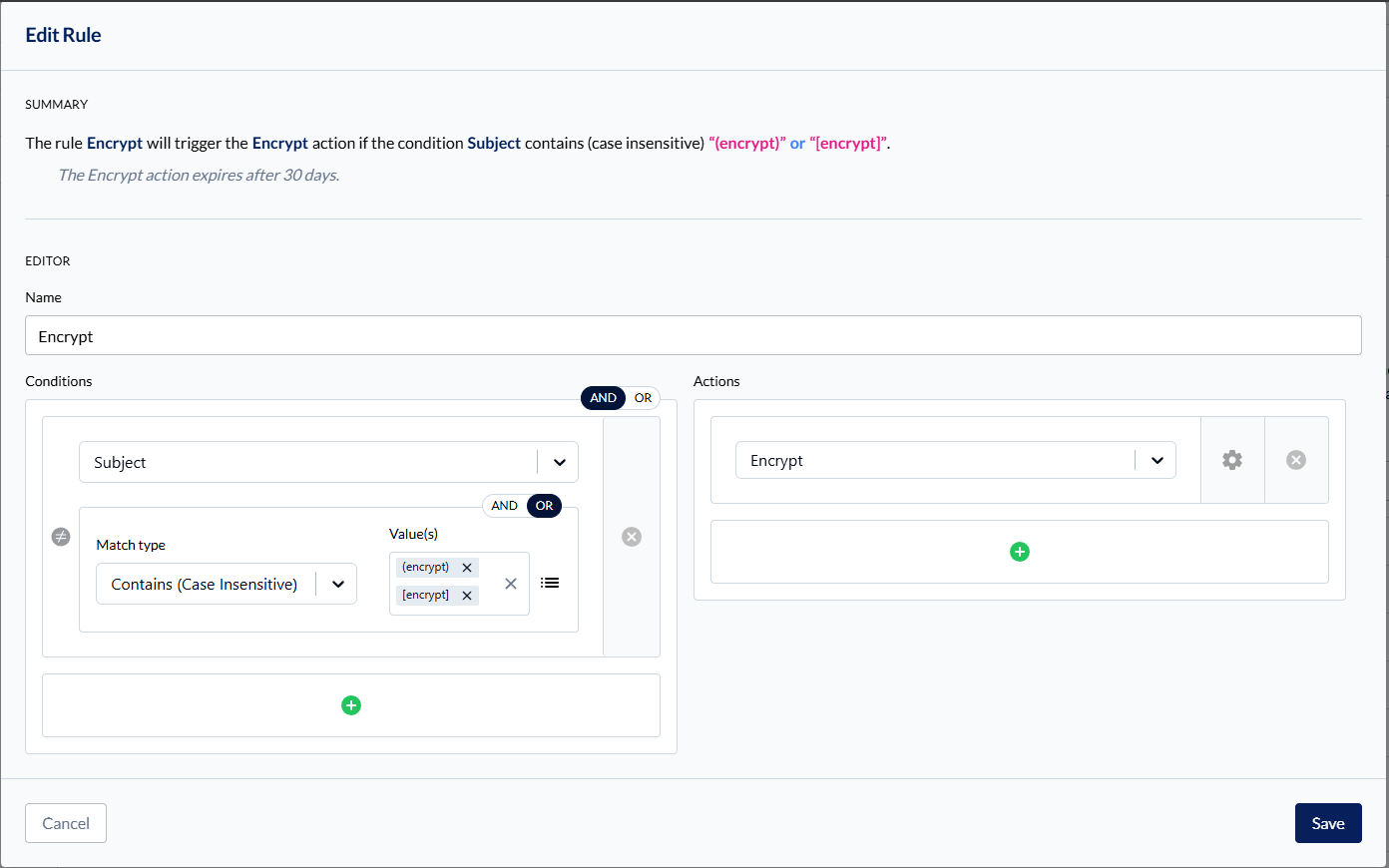
Example: Change to [secure] or custom phrase
Combined Approach
Use both automatic rules and user-initiated keywords for flexibility.
How Recipients Access Messages
Recipient receives Email Assistant notification
Clicks View Encrypted Message button
Authenticates via:
Email-based sign-in (one-time code)
Microsoft SSO
Google SSO
Views message in secure portal
Can reply securely through portal
Encryption + Approval Workflow
Combine encryption with approvals:
Rule detects sensitive content
Approver reviews and approves
INKY automatically encrypts on approval
Message delivers via portal
This ensures both oversight and secure delivery.
Read Receipts
Enable read receipts to know when recipients view encrypted messages:
Edit workflow rule with Encrypt action
Click gear icon on Encrypt action
Check Send Read Receipts
Senders receive notification when message is opened
Sender Notifications
Default: Senders receive confirmation when message is encrypted
Disable notifications:
Navigate to Outbound Protection Settings → Notifications
Check Disable encryption sender notifications
Users no longer receive encryption confirmations
Useful for frequent encryption users who don't need repeated confirmations.
Best Practices
Test first - Send test messages to verify portal access
Communicate to users - Explain the [encrypt] keyword
Combine with training - Educate on when to encrypt
Monitor usage - Review encrypted message volume
Still need help? Ask the team