Admin Management
INKY's Admin List lets Super Admins control who can access and modify your INKY environment. Add admins individually by email or assign roles to entire groups.
Written By Matt Sywulak
Last updated 4 months ago
Found at: Admin Management - INKY
INKY's Admin List feature allows for easy admin management for your INKY team. As a Super Administrator, it allows for complete control and oversight of all of your INKY team admins.
Roles
Note: Only Super Admins can manage Admins.
Add Admin by Email
Use this method for individual admins. The email address can be from any domain.
Navigate to Admin Center
In the left navigation menu, select Admin Management — Admin Management - INKY
On the Admin Management page, click Add New Admin
[Screenshot: Admin Management Email tab with Add New Admin button — updated table layout with search and filtering]
Enter the admin's email address
Select their role
Click Add
The user can log in immediately with their existing credentials.
You can also click any row in the Email list to open the edit modal and change an admin's role or remove them.
Add Admins by Directory Groups
Using Domain and Directory API access, INKY can pull directory groups from M365 and Google Workspace and assign appropriate roles to their members.
Prerequisites
Enable Domain and Directory API Access first: API Access - INKY
Steps
Navigate to Admin Center
In the left navigation menu, select Admin Management — Admin Management - INKY
Select Admins by Active Directory groups (or Admins by Tenant groups for Google)
[Screenshot: AD Groups tab with updated table layout, search, and role filtering]
Click Add New Group
In the Tenant Group dropdown, select your group
Select a Primary role for the group members
Click Add
You can also click any row in the AD Groups list to open the edit modal directly.
Key behavior: If a user belongs to multiple groups with different roles, they receive the highest-level permissions.
Custom Groups
If your group doesn't appear in the Tenant Group dropdown, select Custom Group and manually enter the IDs:
Tenant ID — Unique identifier for your tenant
For M365: Your EntraID tenant ID (found in EntraID → Entra ID → Overview).
For Google: Your INKY team ID.
Group ID — The unique identifier of the group from your directory.
For M365: Found in EntraId Portal → Groups → select your group → Object ID.
For Google: Found in Google Admin Console → Groups → select your group → Group ID.
Admin by KaseyaOne Role
The Admin by KaseyaOne Role tab in Settings > Admin Management lets you manage role mappings between KaseyaOne and INKY directly from the dashboard. All four KaseyaOne roles are always displayed, even if no INKY role mapping exists yet.
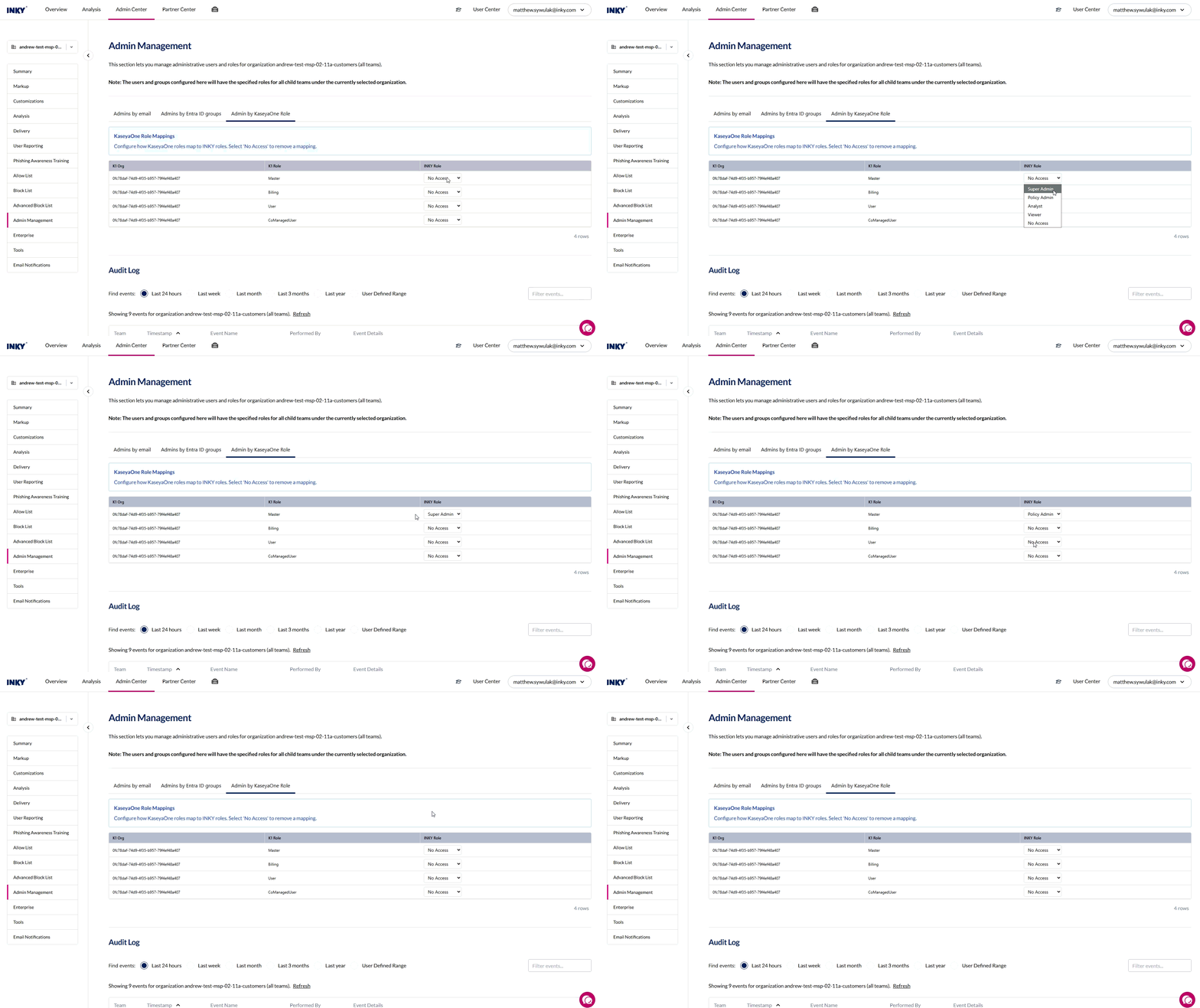
KaseyaOne Role Mappings
Assign or Change a Role Mapping
Navigate to Admin Center
In the left navigation menu, select Admin Management
Select the Admin by KaseyaOne Role tab
Find the KaseyaOne role you want to map
Use the INKY Role dropdown to select the desired role (Viewer, Analyst, Policy Admin, or Super Admin)
The change saves automatically — you'll see a success confirmation
Remove a Role Mapping
To remove a KaseyaOne-to-INKY role mapping, select No Access from the INKY Role dropdown. This removes the mapping entirely — users with only that KaseyaOne role will no longer have INKY dashboard access through that role.
Key behavior: Role mapping changes apply to all teams under the current organization. Users who belong to multiple KaseyaOne roles receive the highest-level INKY permissions.
Set or Update the KaseyaOne Organization ID
The KaseyaOne Organization ID links an INKY team to its corresponding organization in KaseyaOne. It controls which K1 tenant supplies role information for sign-in and must be set before the KaseyaOne role mappings above will resolve users correctly.
Partner Super Admins can now set or update this value directly from the Admin by KaseyaOne Role tab. Previously this required a request to INKY engineering to update it via CLI.
Who can edit it
Partner Super Admins on the parent (partner) team.
Editing is only available from the parent team — child/customer teams inherit the parent's K1 Organization ID and display it read-only.
Where to find it
Navigate to Admin Center
In the left navigation menu, select Admin Management
Select the Admin by KaseyaOne Role tab
The KaseyaOne Organization ID field appears at the top of the tab, above the role mapping table
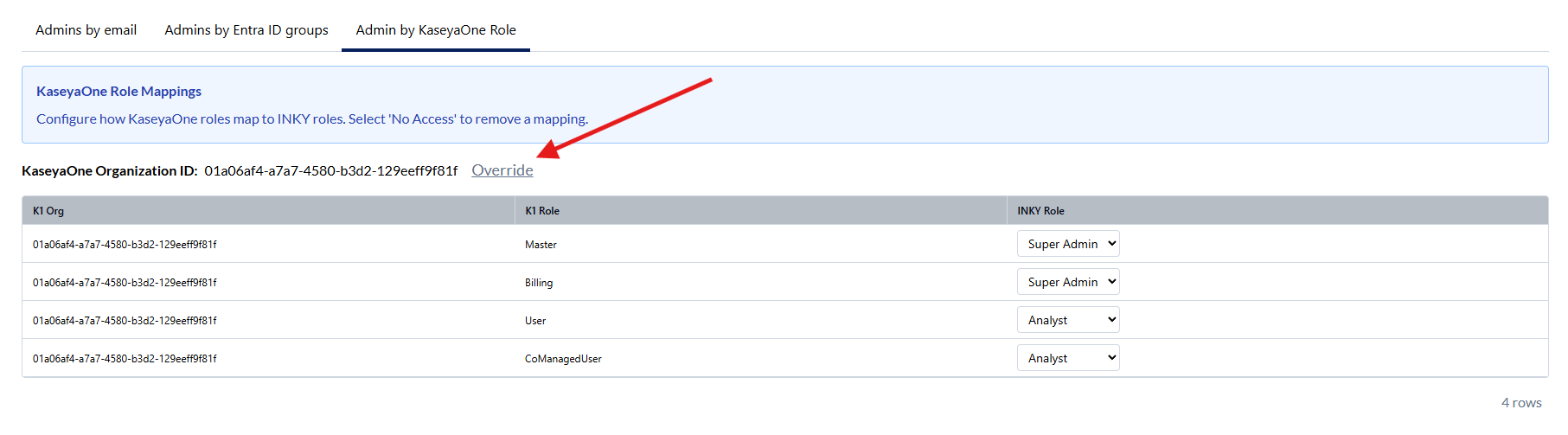
Set or update the ID
Click into the KaseyaOne Organization ID field
Paste or type the new ID — this is the Organization ID from your KaseyaOne tenant (available in KaseyaOne under Organization Settings)
Click Save
A confirmation toast appears once the change is applied
Clear the ID
To disconnect a team from KaseyaOne, clear the field and click Save. Existing KaseyaOne role mappings remain configured but will not resolve users until a valid Organization ID is set again.
Key behavior: Changing the KaseyaOne Organization ID affects which KaseyaOne users can sign in to this team through SSO. Confirm the new ID matches the intended KaseyaOne organization before saving. If users report being unable to sign in via KaseyaOne after a change, verify the Organization ID first.
If you need help locating your KaseyaOne Organization ID or believe the value should be set centrally.
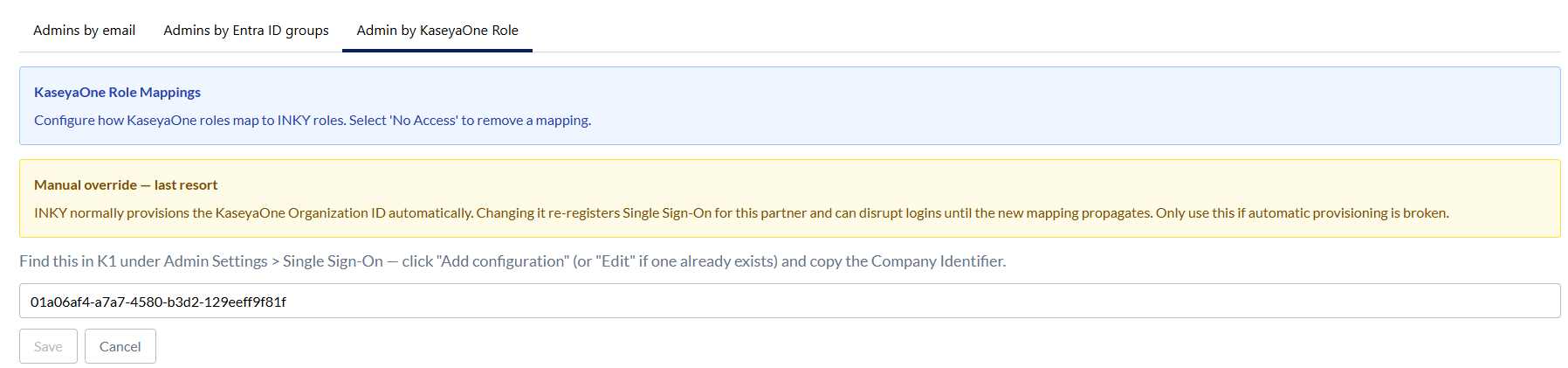
Organization-Level Groups
For MSPs managing multiple teams, you can assign groups at the organization level to grant access across all child teams.
Organizations are denoted with the Skyscraper icon in the team selector. When you have an organization selected, group assignments affect all child teams—including which users can manage each child team.
Groups available at the organization level are inherited from the base team used to create the organization. This allows MSPs to assign directory groups to specific INKY roles, giving members access at the appropriate level to all child teams.
How to identify your view:
Base team view — No skyscraper icon next to the team name. You'll see all settings options.
Organization view — Skyscraper icon visible next to the team name. Fewer settings options, but group assignments here apply to all child teams.