How to Search for Emails

This guide covers common scenarios for finding specific emails in INKY.

Written By Matt Sywulak

Last updated About 2 months ago

Where to Search

  • Observations Page: Navigate to Analysis > Observations for quick searches with pre-configured filters.

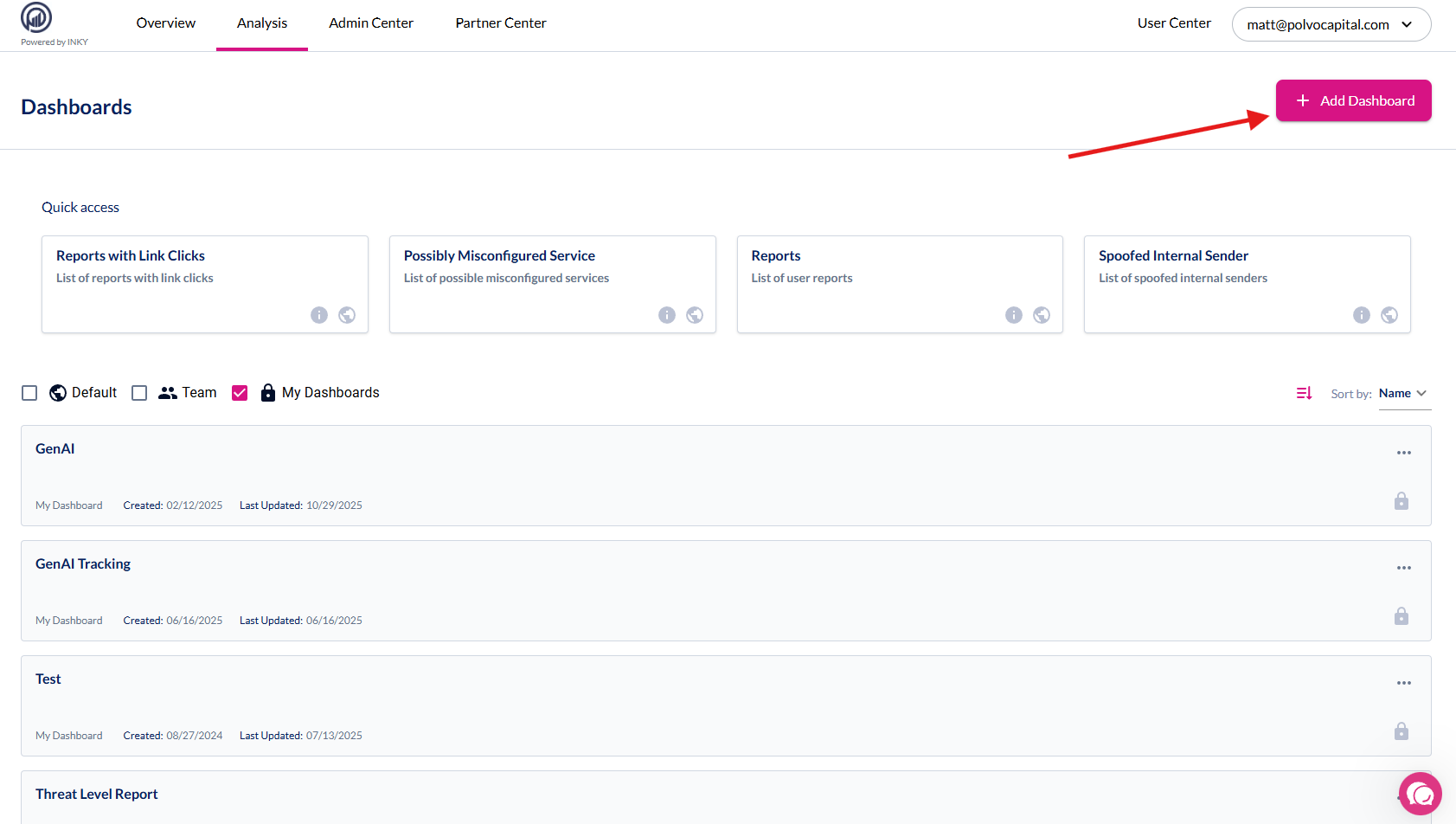
  • Custom Dashboards: Navigate to Analysis > Custom Dashboards > Create a custom dashboard
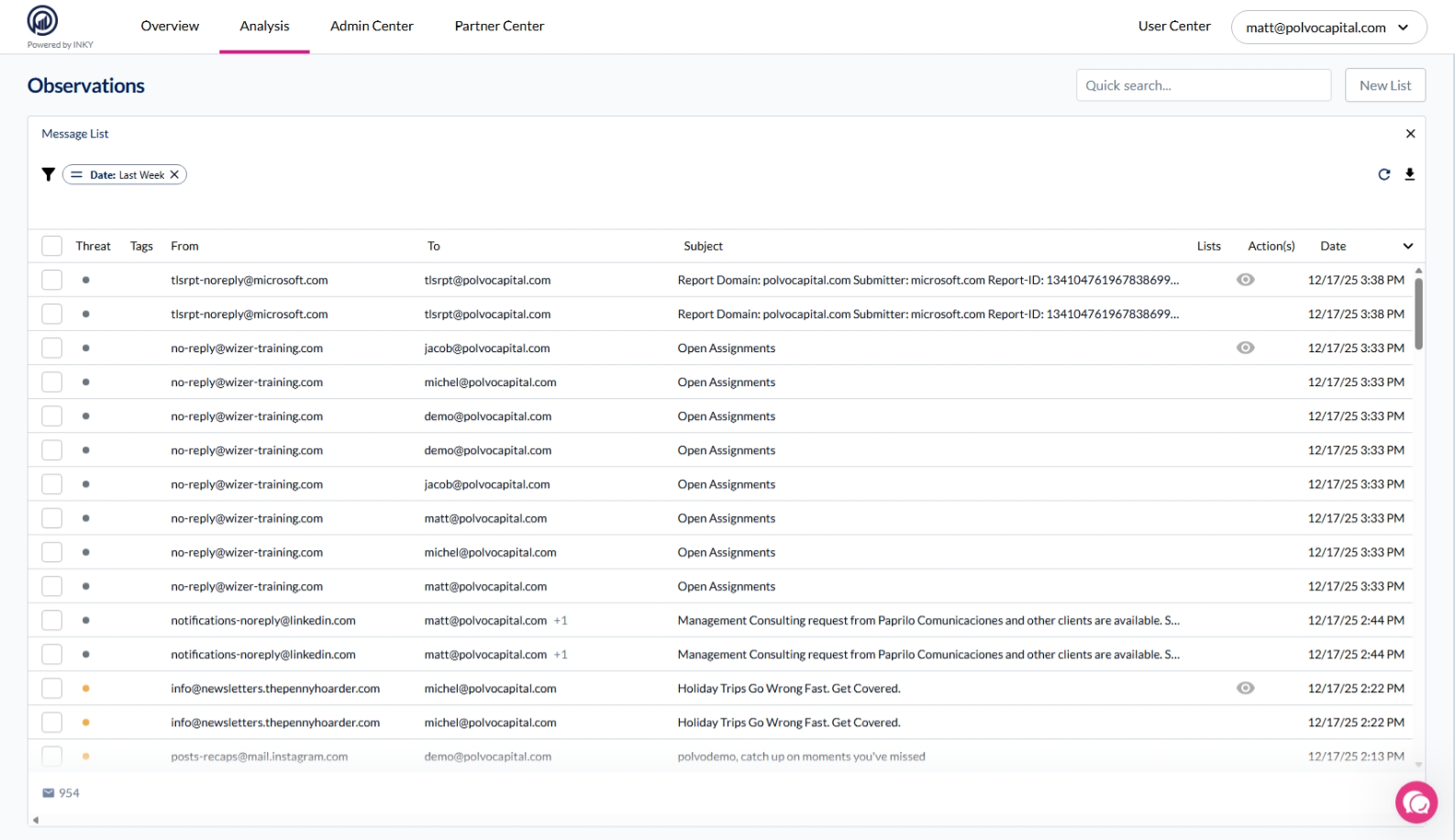
Observation Page
Custom Dashboards

Common Search Tasks

Find a Specific Email You Already Know About

Scenario: You have a Message ID, subject line, or other identifier from a support ticket or alert.

Steps:

  1. Go to Analysis > Observations

  2. Click the Quick Search input

  3. Paste your value β€” Quick Search auto-detects the type:

    • Message ID β†’ messageid

    • Email address β†’ from_email or email

    • Subject text β†’ subject

  4. Press Enter

Tip: Message ID is the fastest way to find a single email if you have it.


Find All Emails from a Sender

Scenario: A user reports suspicious emails from a specific address or domain.

Steps:

  1. Go to Analysis > Observations

  2. Open the Filter Editor

  3. Select General category

  4. Add one of these filters:

    • from_email β€” Exact sender address (e.g., john@example.com)

    • from_domain β€” All emails from a domain (e.g., example.com)

    • from_display_name β€” Search by display name (e.g., "John Smith")

  5. Enter the value and apply

Tip: Use from_domain when investigating a potentially spoofed domain across multiple senders.


Find Emails to a Specific Recipient

Scenario: You need to see all emails a specific user received.

Steps:

  1. Open the Filter Editor

  2. Select General category

  3. Add the email filter

  4. Enter the recipient's email address

  5. Apply the filter

Combine with: processed_date to narrow to a specific time range.


Find Emails by Threat Level

Scenario: You want to review all high-risk emails from the past week.

Steps:

  1. Open the Filter Editor

  2. Select Analysis category

  3. Add the threat_level filter

  4. Select the threat level:

    • 0-1 = Safe/Neutral

    • 2-3 = Caution

    • 4-5 = Danger

  5. Add processed_date filter and set to "Last 7 days"

  6. Apply filters

Quick alternative: Use Quick Search presets β€” click Danger Threat for immediate results.


Find Reported Emails (Phishing, Spam, or Safe)

Scenario: You want to review what users have reported.

Quick method:

  1. Go to Analysis > Observations

  2. Click Quick Search

  3. Select Reported Phish, Reported Spam, or Reported Safe

Advanced method (more control):

  1. Open the Filter Editor

  2. Select Metadata category

  3. Add filters:

    • report_label β€” Filter by report type (Phish, Spam, Safe)

    • reported_by β€” Filter by who reported it

    • report_status β€” Filter by status (Open, Resolved)

  4. Apply filters


Find Emails with Suspicious Attachments

Scenario: You have an attachment hash from a threat intel feed, or want to find emails with specific file types.

By attachment hash:

  1. Open the Filter Editor

  2. Select Media category

  3. Add attachment_hash filter

  4. Paste the SHA256 hash

  5. Apply

By attachment properties:

  1. Add attachments filter

  2. Set criteria:

    • Filename β€” Search by name (e.g., "invoice")

    • Filetype β€” Select type (e.g., .exe, .zip)

    • Size β€” Filter by size (e.g., >= 5 MB)

  3. Apply

Quick alternative: Click Has Attachments in Quick Search to see all emails with attachments.


Find Emails with Link Clicks

Scenario: You need to identify users who clicked links in potentially malicious emails.

Steps:

  1. Go to Analysis > Observations

  2. Click Quick Search β†’ Select Link Clicks

Or with more detail:

  1. Open the Filter Editor

  2. Select Metadata category

  3. Add filters:

    • link_clicks β€” Messages where links were clicked

    • link_click_alert_lvl β€” Filter by alert level of clicked links

  4. Apply

Tip: Combine with threat_level to prioritize dangerous emails with clicks.


Find Emails for a Specific Team

Scenario: You're investigating emails for a particular department or team.

Steps:

  1. Open the Filter Editor

  2. Select General category

  3. Add teamid filter

  4. Search for and select the team

  5. Apply

Tip: Organization-level teams (prefixed with $) let you filter across multiple sub-teams.


Find Emails Within a Date Range

Scenario: You need emails from a specific time period.

Steps:

  1. Open the Filter Editor

  2. Select General category

  3. Add processed_date filter

  4. Choose mode:

    • Relative β€” "Last X days/hours/minutes"

    • Specific β€” Select start and end dates

  5. Apply

Presets available: Today, Yesterday, This Week, This Month, Six Months

Note: Maximum lookback is 180 days.


Combining Filters

Filters stack β€” each additional filter narrows your results. Common combinations:

Goal

Filters to Combine

Recent threats from a domain

from_domain + threat_level + processed_date

User reports needing review

report_label + report_status (Open) + teamid

Attachment-based threats

has_attachments + threat_level + processed_date

Link clicks on dangerous emails

link_clicks + threat_level (4-5)


Quick Search vs Filter Editor

Use Quick Search When...

Use Filter Editor When...

You have a specific value to search

You need multiple filter criteria

You want preset filters (Internal, Danger, etc.)

You need precise control over filter values

Speed is priority

You need filters not in Quick Search

You're doing initial triage

You're building a complex query

Filter Editor

The Filter Editor is found on many components β€” it drives filtering across all aspects of Custom Dashboards and is how Quick Search applies its filters.

Quick Search Filters

Note: Quick Search Filters are only found on the Observations page.

Quick Search

Preset Filters

When you click the Quick Search input, you'll get the following options to select:

FilterDescription

Internal

Messages sent within your organization

External

Messages from outside your organization

Inbound

Messages received

Outbound

Messages sent

Has Attachments

Messages containing file attachments

Neutral Threat

Messages classified as neutral threat level

Caution Threat

Messages classified as caution threat level

Danger Threat

Messages classified as danger threat level

Link Clicks

Messages where links were clicked

Reported Phish

Messages reported as phishing

Reported Spam

Messages reported as spam

Reported Safe

Messages reported as safe

Once you select one of these options, it immediately filters based on that condition. For example, selecting Reported Phish returns a list with Last Week and Report Label: Phish pre-selected.

Search by Value

If you click the Quick Search input and paste a value, you can search by that value based on the corresponding option selected:

Search TypeDescription

Message ID

Unique identifier for an email

Recipient

Email address of the recipient

Sender

Email address of the sender

Subject

Email subject line

Attachment Hash

SHA256 hash of an attachment

Link

URL found in the message

Workflow Rule

Name of a workflow rule

Team Id

Team identifier

Example: If you have a Message ID from an email you're searching for, copy it, paste it into the input, and hit Enter β€” it will automatically select Message ID as the search type.


Filter Editor Categories

The full Filter Editor organizes 74 filters into 6 categories:

Category

Filters

Description

General

14

Core message properties (sender, recipient, date, team)

Headers

9

Email header fields (To, From, CC, Subject, Message ID)

Media

5

Attachments, images, and links

Analysis

19

Threat detection and classification results

Metadata

18

Authentication, IPs, reports, and tags

Workflow

9

Workflow state and history

Input Types

Different filters use different input methods:

Input Type

Description

Example Filters

Keyword

Search with auto-suggestions

Sender, Recipient, Domain

Text

Free-text search

Subject, Display Name

Boolean

True/False selection

Internal, Outbound

Unary

Presence check (no input needed)

Has Attachments, Has Links

Date

Date range picker (relative or specific)

Processed Date

IP

IP address input (octet-based)

Connecting IP, Sender IP

Attachments

Multi-property filter

Filename, Type, Size

Links

URL or domain search

Link URLs

Team

Team/organization selector

Team ID

Report Label

Predefined label selection

Report Label


Filter Reference

General Filters

Filter

Input Type

Description

teamid

team

Filter by team or organization

email

keyword

Recipient email address

from_email

keyword

Sender email address

from_display_name

text

Sender display name

from_domain

keyword

Sender domain

recipient_team_domains

keyword

Recipient's team domains

processed_date

date

Message processing date (max 180 days lookback)

internal

boolean

Internal (true) vs External (false) messages

known_external_sender

boolean

Known external sender status

mail_from

keyword

Mail-from header value

organizational_unit

keyword

Organizational unit

origination_source

keyword

Message origination source

source

keyword

Message source

outbound

boolean

Outbound (true) vs Inbound (false)

journal_mode

boolean

Journal mode enabled

Headers Filters

Filter

Input Type

Description

rcpt_to_addresses

keyword

RCPT TO header addresses

headers_from

keyword

FROM header (supports address or friendly_name)

headers_to

keyword

TO header (supports address or friendly_name)

headers_replyto

keyword

REPLY-TO header

headers_cc

keyword

CC header

headers_bcc

keyword

BCC header

headers_inreplyto

keyword

IN-REPLY-TO header (thread reference)

subject

text

Email subject line

messageid

keyword

Message ID

messageid_domain

keyword

Message ID domain

Media Filters

Filter

Input Type

Description

attachment_hash

keyword

Attachment SHA256 hash

attachments

attachments

Multi-property: filename, filetype, size (MB)

has_attachments

unary

Messages with attachments

images

images

Image URLs in message body

links

links

Hyperlinks (search by URL or domain)

has_links

unary

Messages containing links

Analysis Filters

Filter

Input Type

Description

delivery_target

keyword

Delivery target

reason_ids

keyword

Detection reason IDs

result_bucket

keyword

Result classification bucket

sensitive_content_categories

keyword

Sensitive content categories

spam_content_categories

keyword

Spam content categories

phishing_content_categories

keyword

Phishing content categories

spam_phishing_content_categories

keyword

Combined spam/phishing categories

threat_level

keyword

Neutral/Caution/Danger

trinitycyber_detected

boolean

Trinity Cyber detection flag

generative_ai_ensemble_label

keyword

AI ensemble label

brand_impersonation_domain

keyword

Brand impersonation domain

Metadata Filters

Filter

Input Type

Description

authentication_results

text

SPF/DKIM/DMARC authentication results

banner_suppressed

boolean

Banner suppression status

connecting_ip

ip

Connecting IP address

google_phish

boolean

Google phishing detection

google_spam

boolean

Google spam detection

helo_string

keyword

HELO/EHLO string

link_click_alert_lvl

keyword

Link click alert level

link_clicks_continued

boolean

Continued link clicks

link_clicks

unary

Messages with link clicks

microsoft_scl

keyword

Microsoft Spam Confidence Level

phishing_test_provider

keyword

Phishing test provider

report_label

report_label

Report label/tag

reported_by

keyword

Reporter email address

reports

unary

Messages with user reports

report_status

keyword

Report status (Open, Resolved, etc.)

sender_ip

ip

Sender IP address

sender_location

text

Sender geographic location

tags

keyword

Message tags

Workflow Filters

Filter

Input Type

Description

workflow_state_action

keyword

Current workflow state action

workflow_state_user

keyword

Current workflow state user

workflow_history_action

keyword

Workflow history action

workflow_history_user

keyword

Workflow history user

workflow_rule_name

keyword

Workflow rule name

workflow_condition_name

keyword

Workflow condition name

workflow_condition_value

keyword

Workflow condition value

workflow_encrypted

boolean

Encrypted workflow messages


Filter Behavior Notes

Date Filter

  • Supports relative mode (X days/hours/minutes ago) and specific mode (calendar picker)

  • Maximum lookback: 180 days

  • Presets: Today, Yesterday, This Week, This Month, Six Months

IP Filters

  • Segmented input for each octet (0-255)

  • Supports pasting full IP addresses

  • Provides suggestions from backend data

Attachments Filter

  • Filename: Text search

  • Filetype: Dropdown selection

  • Size: Slider (0-100 MB) with >= or <= operators

Links Filter

  • URL mode: Search by URL prefix

  • Domain mode: Search by domain name