Internal Name Spoofing Protection
INKY detects when attackers impersonate your employees by comparing email display names against your organization's directory (Microsoft 365 or Google Workspace). No manual lists required.
Written By Matt Sywulak
Last updated 2 months ago
How It Works
INKY automatically syncs your directory and tracks recently seen names, catching spoofing attempts even after employees leave. When an external sender uses a display name matching an internal employee, INKY flags it with a warning banner.
Example threat: External attacker sends email with display name "John Smith, CFO" to request urgent wire transfer.
Enable Protection
Admin Center > Analysis > Internal Name Spoofing Protection Analysis - INKY
Toggle on "Enable internal name spoofing checks"
Optional: Add custom policy message to display with warnings
Verify: Check status shows tracked user names and last sync time
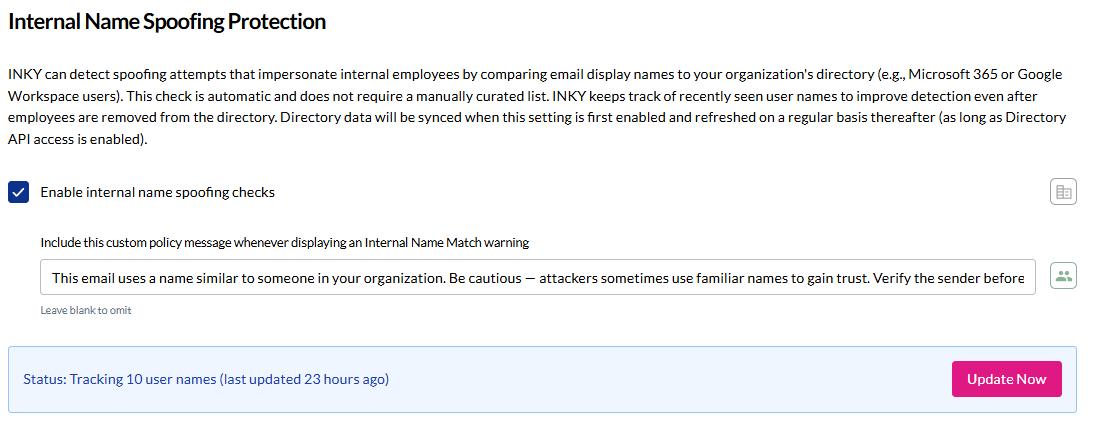
Key Settings
Custom message - Add organization-specific guidance when warnings appear (e.g., "Always verify payment requests through known channels"). Leave blank to use INKY's default warning.
Directory sync - Happens automatically when enabled, then refreshes regularly. Use "Update Now" to force immediate sync if you've added new employees.
Requirements: Directory API access must be enabled for M365 or Google Workspace.
What Users See
Yellow banner warns: "This sender's display name matches someone in your organization, but the email address is external." Users can report suspicious matches via Quick Action links.
Still need help? Ask the team