Quick Action Reporting Links
One-click email reporting makes it easy for users to classify threats and train INKY's detection engine. Instead of navigating through multiple screens, users can report messages as Safe, Spam, Phish, or Graymail directly from the banner with a single click.
Written By Matt Sywulak
Last updated About 1 year ago
Who Needs This
All INKY customers across Standard, Professional, and Advanced bundles can enable Quick Action Reporting Links. This feature is especially valuable for organizations that want to encourage user reporting while reducing friction in the reporting process.
Quick Setup
Enable Quick Action Reporting Links in just two steps:
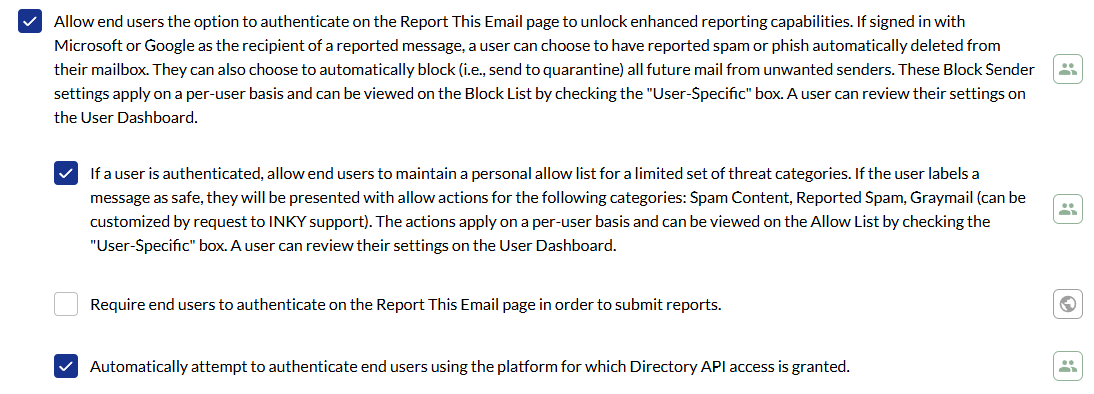
Navigate to User Reporting in your INKY admin portal
Check both of these boxes:
Replace the standard "Report This Email" link with quick action links
Automatically treat the user as authenticated for single-recipient messages
That's it. Your users will immediately see contextual quick actions in their INKY banners.

How It Works
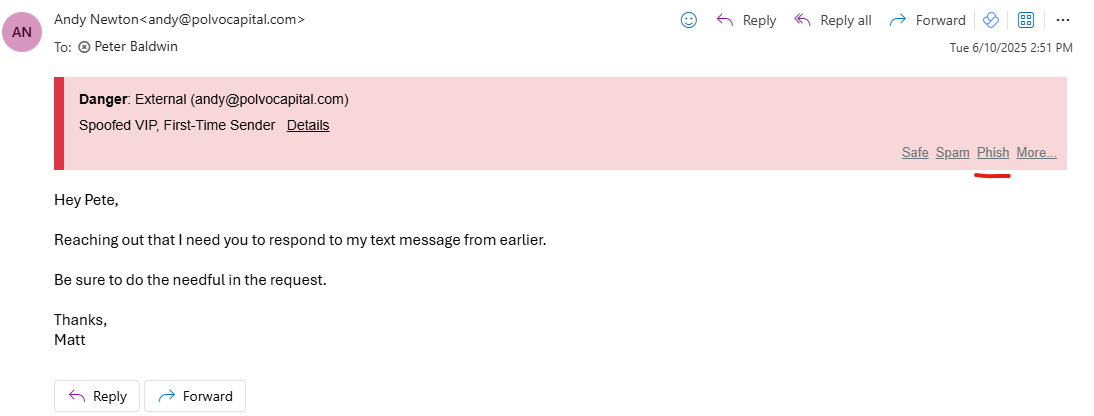
INKY analyzes each message and presents up to three relevant quick actions based on the message's threat level, sender context, and your policy settings. The options adapt to what makes sense for each specific email.
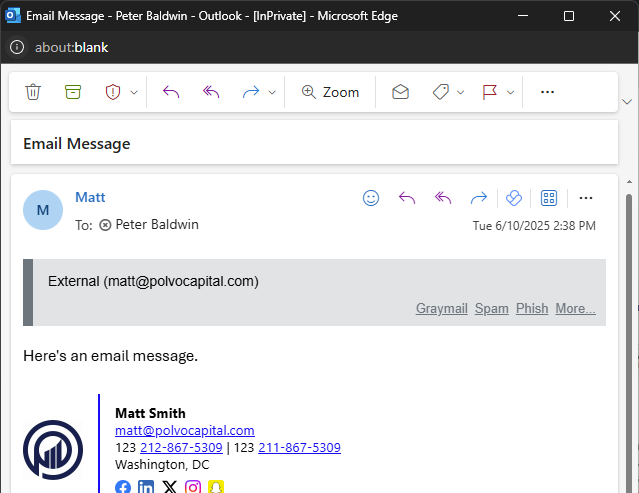
For a dangerous phishing message, users see options like Safe, Spam (Block), and Phish (Block). For a clean external message, they might see Graymail, Spam, and Phish options instead. A More… link always appears as the final option, leading to the full reporting page for advanced choices.
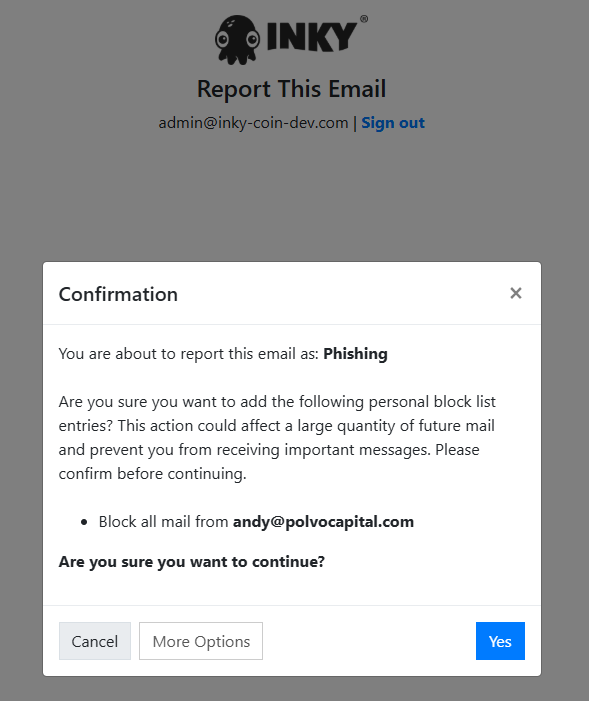
When a user clicks a quick action, INKY shows a simple confirmation screen. They can proceed with one click, cancel, or choose More Options to access the full reporting interface with additional settings.
Single-Click Authentication
On one-to-one emails (single sender, single recipient), clicking any quick action automatically authenticates the user. INKY still attempts browser-based Microsoft or Google auto-sign-in, but this implicit authentication makes reporting even faster without requiring separate login steps.
What Actions Appear When
INKY shows different quick actions depending on how the message was classified and your policy settings. Here's what users see in common scenarios:
Phishing Messages (Red Banner)
Safe • Spam (Block) • Phish (Block) • More…
The most dangerous messages offer all three severity levels. Users can confirm it's phishing, downgrade to spam, or mark it safe if it's a false positive. Blocking options appear if enabled in your policy.
Spam Messages (Yellow or Red Banner)
Not-Spam • Spam (Block) • Phish (Block) • More…
If false positive corrections are enabled, "Not-Spam" appears first to make corrections easy. Otherwise, users see "Safe" as the first option. If the message is also flagged as graymail, the first option becomes "Not-Spam + Not-Graymail" to correct both classifications at once.
Graymail Messages (Gray Banner)
Not-Graymail • Spam (Block) • Phish (Block) • More…
Bulk and promotional messages start with a correction option if allowed. Clicking "Safe" automatically unchecks the graymail classification, so users don't need to explicitly select "Not-Graymail" if they just want to mark it safe.
Other Threats (Yellow Banner)
Safe • Spam (Block) • Phish (Block) • More…
Messages with caution indicators that aren't spam or graymail show standard escalation options from safe to spam to phishing.
Clean Internal Email (Green or No Banner)
Safe • Spam • Phish • More…
Internal mail never shows blocking options, even when sender blocking is enabled elsewhere. Users can confirm it's safe or report it as spam or phishing if needed.
Clean External Email (Green or No Banner)
The quick actions depend on whether graymail detection is enabled:
With graymail detection: Graymail • Spam (Block) • Phish (Block) • More…
Without graymail detection: Safe • Spam (Block) • Phish (Block) • More…
External senders that haven't triggered any warnings show either graymail marking or safe confirmation as the first option.
Understanding the Confirmation Screen
After clicking a quick action, users see a confirmation page with three choices:
Confirm the action - Proceeds with the selected classification
Cancel - Returns to the inbox without making changes
More Options - Opens the full reporting page with advanced settings like custom comments, allowlist/blocklist options, and detailed classification controls
This confirmation step prevents accidental reports while keeping the process streamlined for intentional reporting.
Advanced Topics
How INKY Chooses Which Actions to Show
INKY uses a decision algorithm that considers the message classification, sender context, and your policy settings. The system ensures users always see the most relevant options without overwhelming them with choices.
The algorithm prioritizes correction options (Not-Spam, Not-Graymail) when they're enabled and appropriate. It then adds escalation options (Spam, Phish) and includes blocking variants when sender blocking is enabled. INKY automatically deduplicates options to ensure no two links have the same label and action.
Internal vs. External Message Handling
INKY treats internal and external messages differently to prevent blocking legitimate internal communications. Clean internal mail never shows blocking options, even when "block sender" is enabled for external threats. This prevents users from accidentally blocking coworkers or internal systems.
External messages always include blocking options (when enabled) since they represent potential threats from outside the organization.
Troubleshooting
Quick actions aren't appearing in banners
Verify both checkboxes are enabled in User Reporting settings. If only one is checked, you may see the standard "Report This Email" link instead of quick actions.
"Not-Spam" or "Not-Graymail" options are missing
These correction options only appear when "If a user is authenticated, allow them to allow future emails from a sender" is enabled in User Reporting. Check this setting if users need to correct false positives.
Blocking options aren't showing
Sender blocking requires the "Allow end users the option to authenticate and permanently block or allow future emails" setting. Also verify the message is external - internal mail never shows blocking options.
Graymail quick action isn't available
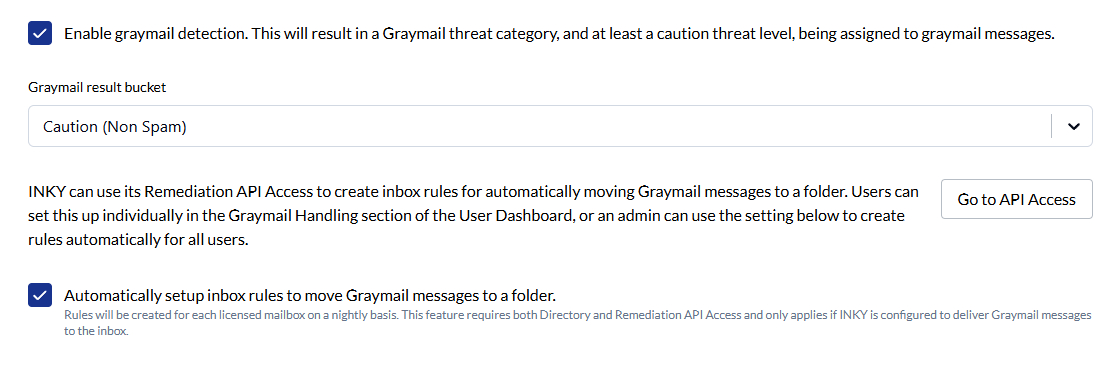
Both graymail detection and automatic inbox rules must be enabled in Graymail Protection settings. If only one is active, explicit graymail marking won't appear in quick actions.
Users see fewer than three quick actions
This is normal behavior. INKY shows only relevant options and automatically deduplicates identical actions. Some message types may have fewer than three meaningful choices.
Still need help? Ask the team