Using the Triage Page
Written By Matt Sywulak
Last updated About 2 months ago
The Triage page is the central view for monitoring and managing all active and historical Account Takeover (ATO) enforcements. It appears in the main navigation when ATO Detection is enabled for your team.
Triage requires INKY Pro and is gated as a beta feature. Contact your account team to have it enabled for your organization.
Page overview
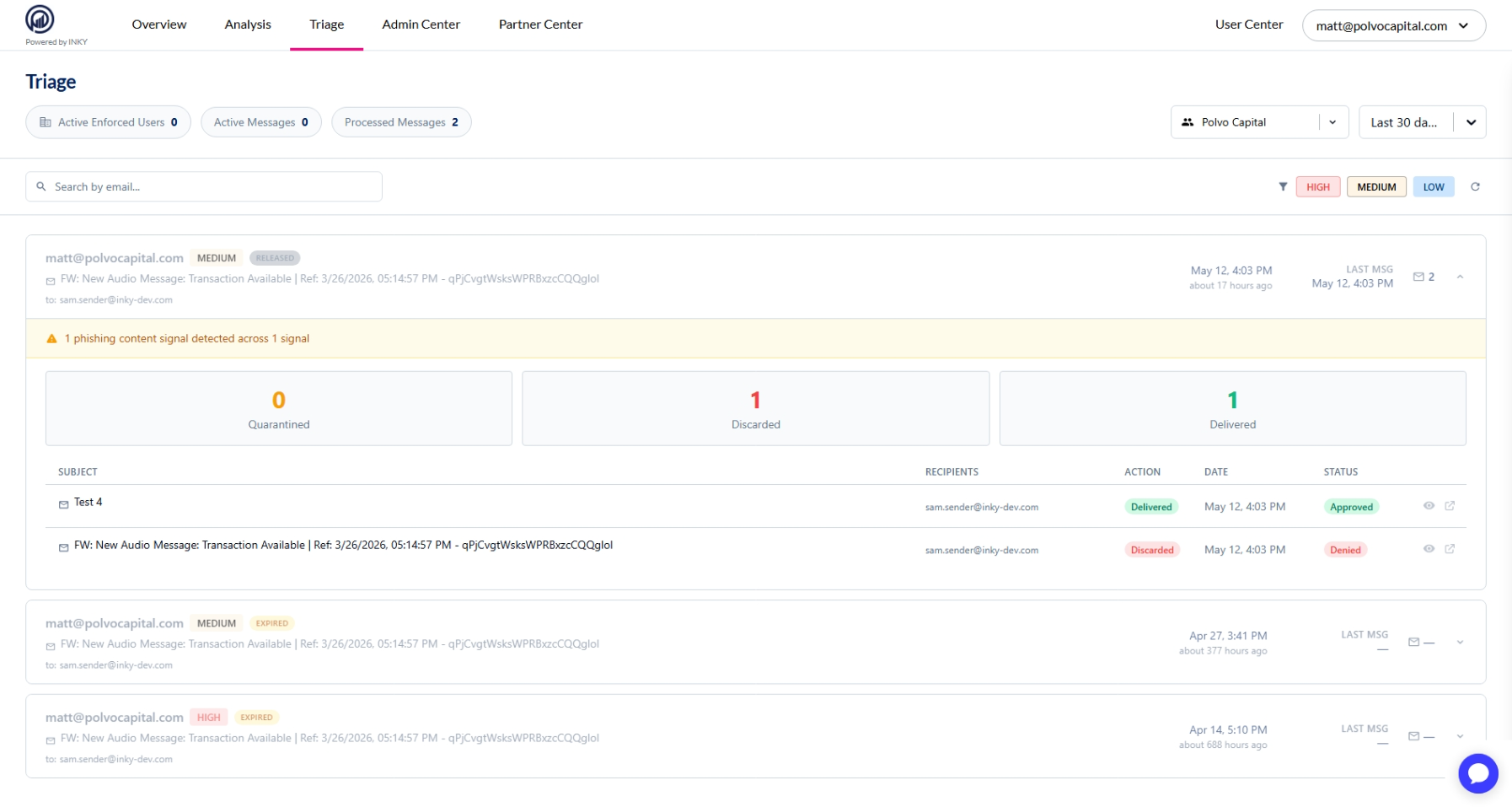
The header shows three live counters for the selected team:
Active Enforced Users — users currently in enforcement mode
Active Messages — messages currently held under enforcement awaiting action
Processed Messages — messages that have been approved, rejected, or expired
Use the team selector and date range selector (default: last 7 days) in the top-right to filter the view. A specific team must be selected — the Triage page does not support the all-teams view.
Reading the enforcement list
Each enforcement appears as a row showing:
The user's email address
A threat level badge (High / Medium / Low)
An enforcement status pill: Active (currently in enforcement), Expired (time elapsed without admin action), or Released (manually dismissed by an admin)
The subject line of the triggering message and intended recipients
When enforcement began and how long ago
The time of the most recent message held under enforcement
A message count (total messages held)
Active enforcements are sorted to the top. Expired and released enforcements appear below.
Reviewing an enforcement
Click anywhere on an enforcement row to expand it. The expanded view shows:
Alert summary
A banner describing what triggered enforcement — for example: "3 dangerous links, 1 phishing content signal detected across 2 signals." This gives you a quick read on why the user was flagged before reviewing individual messages.
Message summary counts
Three stat boxes show how many messages under this enforcement are currently Quarantined, Discarded, and Delivered.
Message table
Each message held under enforcement is listed with:
Subject — with any workflow rules that matched (hover a rule to see matched conditions)
Recipients
Action — what happened to the message (Quarantined, Discarded, or Delivered)
Date
Status — the current state: Approved, Denied, ATO Delivered, ATO Discarded, Approval Expired, etc.
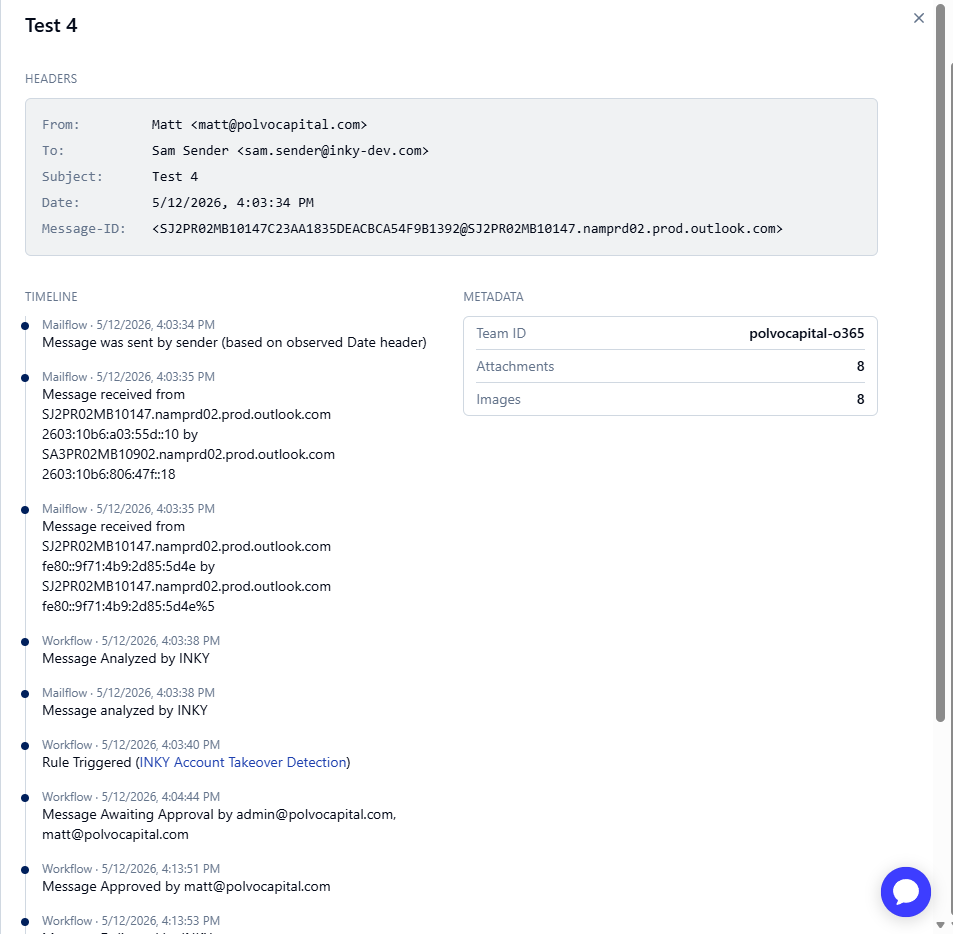
Links — open message details or jump to the Observations page for the message
[image placeholder - An expanded enforcement row showing the amber alert summary banner, the three Quarantined/Discarded/Delivered stat boxes, and the message table below with at least one message showing Approve and Reject buttons]
Approving and rejecting quarantined messages
For messages that are currently quarantined and have not yet been acted on, administrators with Modify permission will see Approve and Reject buttons in the message row.
Approve — releases the message for delivery to recipients
Reject — discards the message permanently
Actions take effect immediately. If multiple messages share a group key (part of the same sending batch), processing one will lock the others from simultaneous action until complete.
Releasing a user from enforcement
To end an active enforcement before its Time in Force expires, click the shield icon on the right side of the enforcement row. This opens the Release modal.
If the user still has quarantined messages awaiting action, choose how to handle them:
Approve Quarantined Messages — releases all held messages for delivery
Reject Quarantined Messages — discards all held messages
Do Nothing with Quarantined Messages — leaves held messages in place (they will be automatically rejected when enforcement ends)
Click Release User to confirm. The user's outbound messages resume normal delivery immediately. The enforcement row remains visible with a Released status.
Filtering and search
Search bar — filter the enforcement list by email address
High / Medium / Low buttons — toggle to show or hide enforcements at specific risk levels
Refresh button — manually reload the enforcement list and message counts
Date range selector — choose the lookback window (7 days, 14 days, 30 days, etc.)
The Triage page does not auto-refresh — use the refresh button if you are actively monitoring a live enforcement situation.