Observations

Observations is INKY's detailed email analysis view. Every email INKY processes appears here with complete threat intelligence, delivery routing, and remediation options.

Written By Matt Sywulak

Last updated 4 months ago

Location: Analysis > Observations Observations - INKY

Message List
Filtering

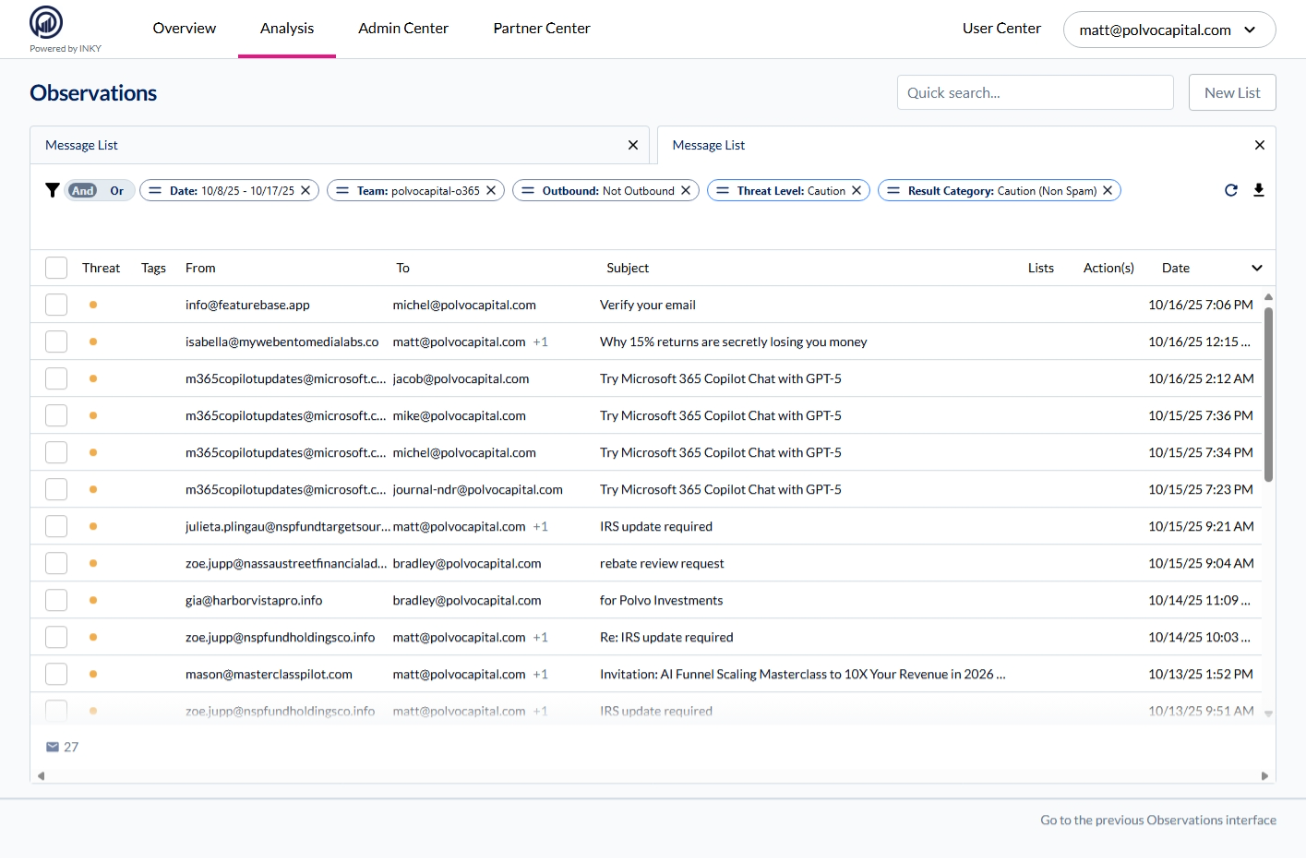
Filter Bar - Combine multiple filters using AND/OR logic. Click X to remove filters.

Quick Search - Find by sender, recipient, subject, or domain.

New List - Save current filters for recurring investigations.
General Filters

Filter

Description

Organization/Team

Search for a team or organization by team ID, team label, domain, or administrator email address.

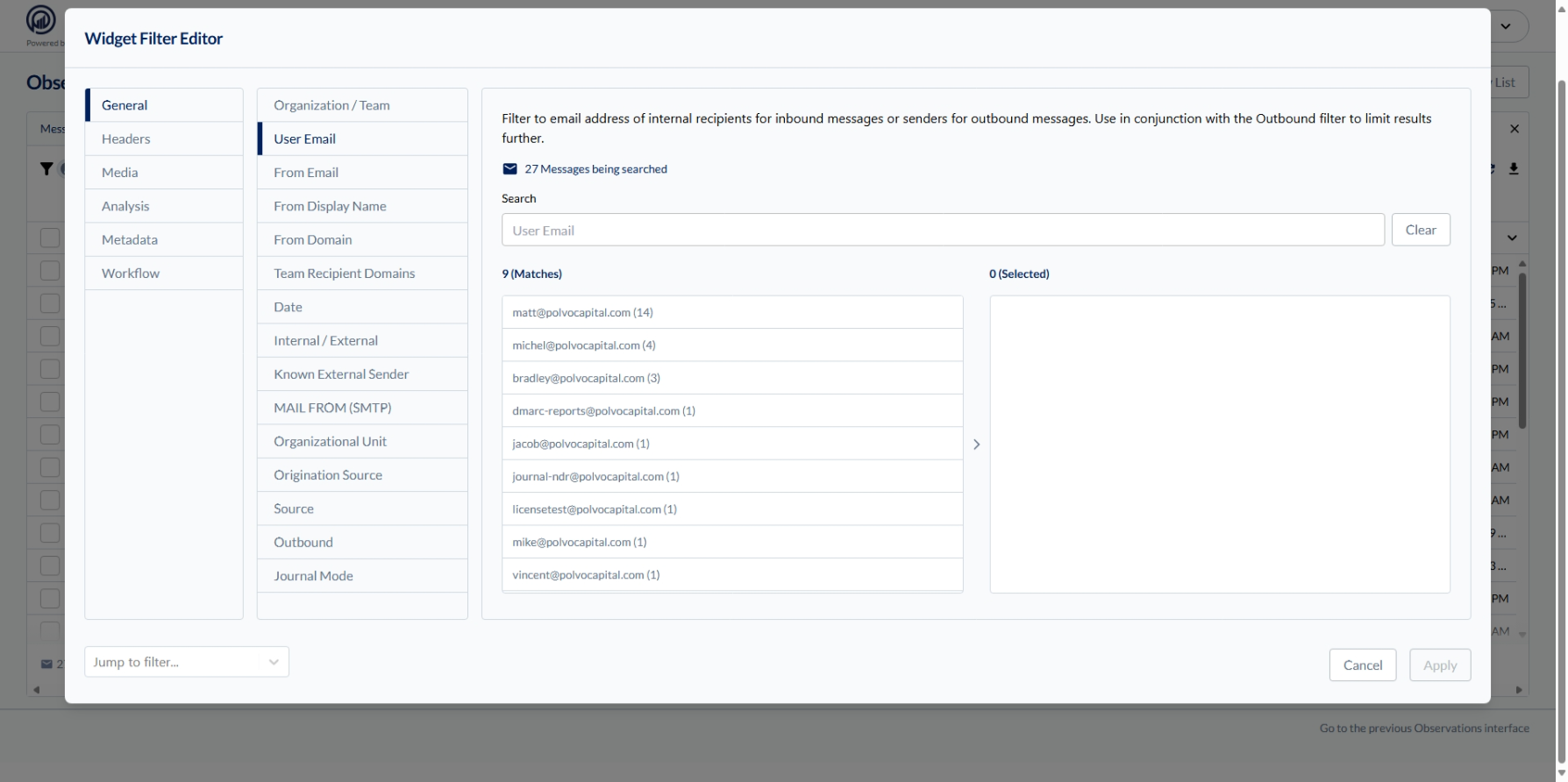
User Email

Internal addresses only

From Email

From header email

From Display Name

Name shown in email client

From Domain

Sender's domain (@example.com)

Team Recipient Domain

Domains on the selected team

Date

Relative or specific date/time ranges

Internal/External

Toggle message direction

Known External Sender

True/False if an email was from a known external sender

MAIL FROM (SMTP)

Envelope sender/Return-Path

Organizational Unit

Recipient's OU

Origination Source

Outside/Inisde

Source

Ingestion method (most are "gateway")

Outbound

True/False if it was an outbound message (only shows if you have Pro)

Journal Mode

True/False if processing users through Journal not mailflow

Header Filters

Filter

Description

Bcc, Cc, To

Recipient fields

From

From header field

Reply To

Reply-To address (may differ from From)

Message ID

Unique identifier

Message ID Domain

Domain from Message ID

Any Recipient

All internal recipients

Subject

Subject line (partial matches work)

Media Filters

Filter

Description

Attachment Hash

MD5 hash of attachments

Attachments

Content type (e.g., image/png)

Has Attachments

Toggle

Images

Remotely hosted image URLs

Links

Original domains of rewritten links

Has Links

Toggle

Analysis Filters

Filter

Description

Delivery Target

Inbox, Junk, User-Q, Admin-Q

Threat Categories

Specific threat types (spoofing, phishing, impersonation)

Result Category

Neutral, Caution (Non Spam/Spam/High Confidence), Danger (Phish or Malware/High Confidence)

Sensitive Content

Money, Password, COVID-19 matches

Spam Content

Specific Spam Content classifications

Phishing Content

Specific Phishing Content classifications

Threat Level

Neutral, Caution, or Danger

AAA Threat Detected

Toggle

Gen AI Labels

Filter by specific Gen AI Labels

Brand Impersonation

Filter by specific companies detected

Metadata Filters

Filter

Description

Authentication Results

SPF/DKIM/DMARC outcomes

Banner Present

True/False

Connecting IP

Last mail hop before your server

Google Phish/Spam

Google's detection results

HELO String

Remote server FQDN

Link Alert Level

Danger/Caution

Link Visited

Toggle

Link Clicks

Messages where users clicked rewritten links

Microsoft SCL

Spam Confidence Level score

Phish Test Provider

Simulations with X-PHISHTEST header

Report Label

Safe, Spam, or Phishing

Reported By

User who submitted report

Reports

Has Reports toggle

Report Status

Open/Confirmed

Sending IP

Sending mail server IP

Sender Location

Search by Geo Location

Tags

Custom tags assigned in dashboards

Note: Results depend on previously applied filters. Result counts appear in parentheses.

Message Columns

Threat - Color-coded dot (yellow = Caution, red = Danger, gray = Neutral)

Tags - Visual indicators for special processing or flags

From - Sender email address

To - Recipient email (shows +1, +2, etc. for multiple recipients)

Subject - Email subject line

Lists - Which allow/block lists matched this email

Note: The Lists column shows which policies would apply to a message, not whether they were actually triggered. After creating an allow list for a domain, all past emails from that domain will show the allow list icon.

Action(s) - Automated actions taken (quarantine, delivery, modification)

Date - When INKY processed the email

Click any row to open the Details panel.

Details Panel

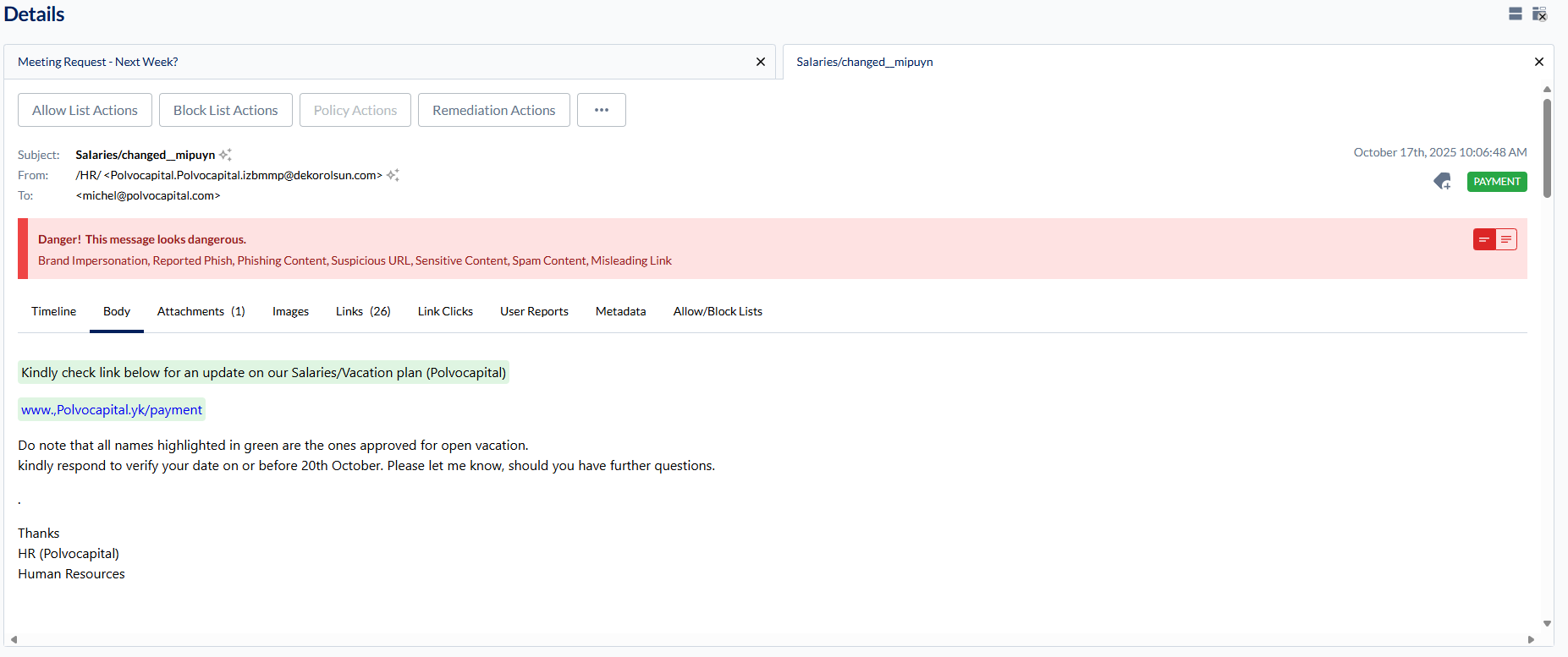
Shows complete analysis for selected email(s). Switch between emails using tabs at the top. Select multiple messages for bulk actions.
Action Buttons

Action Description

Flag As Important

Add/remove "important" tag

Flag for Follow Up

Add/remove "flag" tag

Take No Action

Mark as reviewed (tracking only, no delivery impact)

Add Allow List Entry

Whitelist sender or domain

Add Block List Entry

Block sender or domain

Policy Actions

Create policy entries (Spoofed Internal Sender only)

Remediate

Delete from mailboxes, quarantine, or restore (requires API access, Policy Admin+)

Add Tag

Apply custom tags

Analysis Tabs

Tab Content

Summary

Transmission info (from, to, subject, date)

More

Technical details and headers

Timeline

Mail flow from send to delivery

Body

Email content with INKY banner

History

All actions performed on this message

Lists

Allow/block/policy entries that would apply (not whether triggered)

Attachments

Files, scan results, safety analysis

Images

Embedded images, QR code detection

Links

URLs with reputation scores and rewrite status

Link Clicks

User clicks with timestamps

Reports

User reports (confirm or reject)